Pair two devices in a minute
FileApex connects your own devices, so you need two: for example your phone and your computer. Nothing goes through a company server.
Want to look around first? Open the app and choose Try Demo Mode. It uses simulated devices and moves no files.
-
Install it on both devices
Get the app for each device from the download page. Android also has Google Play. Use the same network for the first pairing, for example the same Wi-Fi.
-
On the first device, choose Add a device to this one
Open the add menu in FileApex and pick Add a device to this one. It shows a QR code and also announces itself on your network for a minute or so. Use the device you want to keep your existing devices, such as your computer.
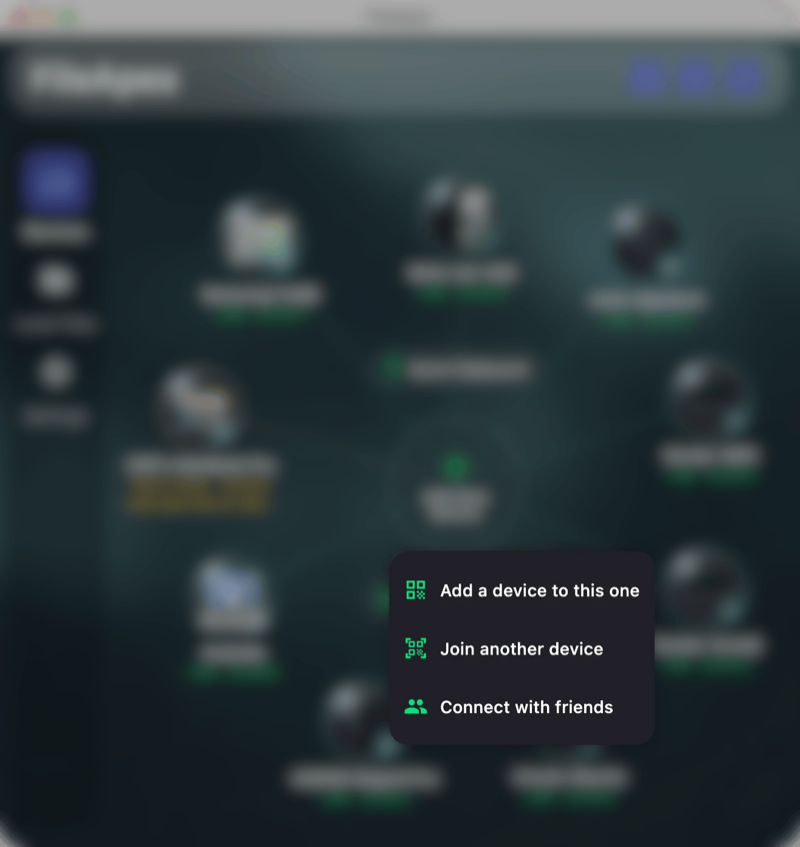
The add menu 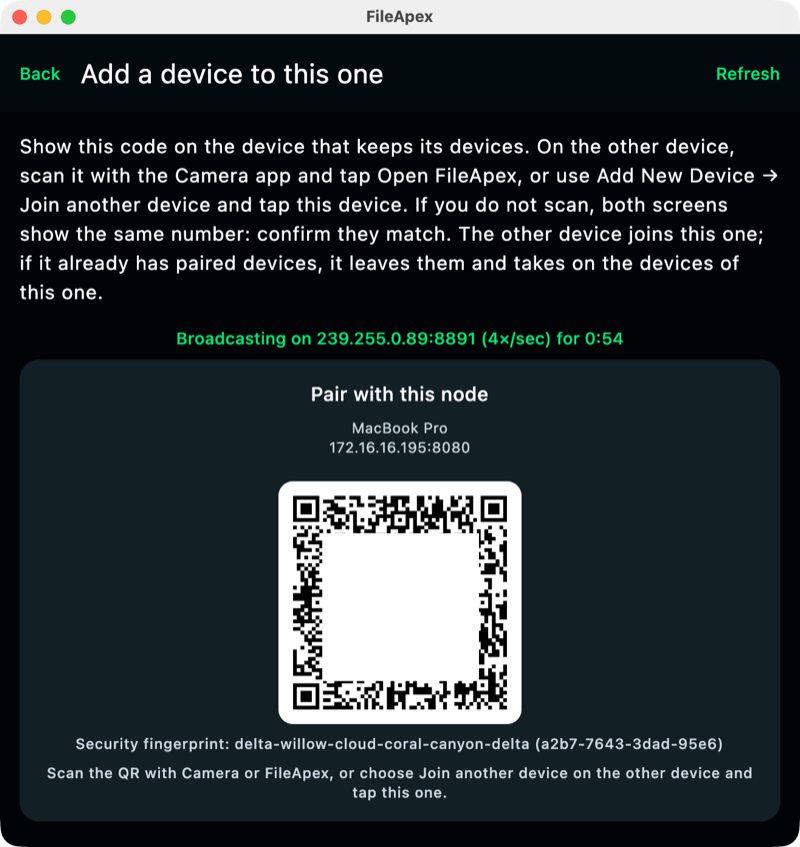
The pairing code -
On the other device, choose Join another device
On an Android phone, allow the camera to scan the QR code, or tap the first device in the list of nearby devices. On a computer, type the 6-digit code from the first device or paste a pairing link. Live QR scanning is on Android only.
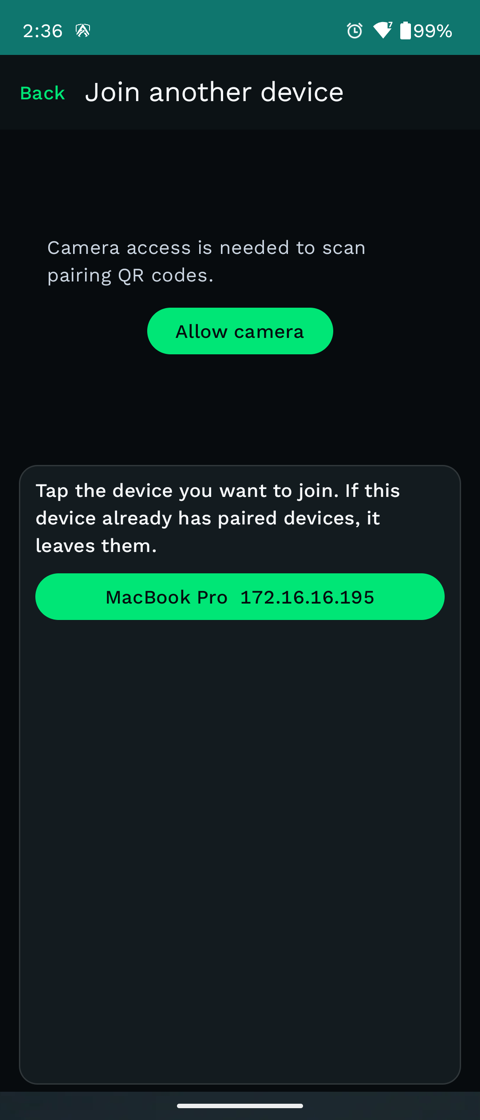
On Android 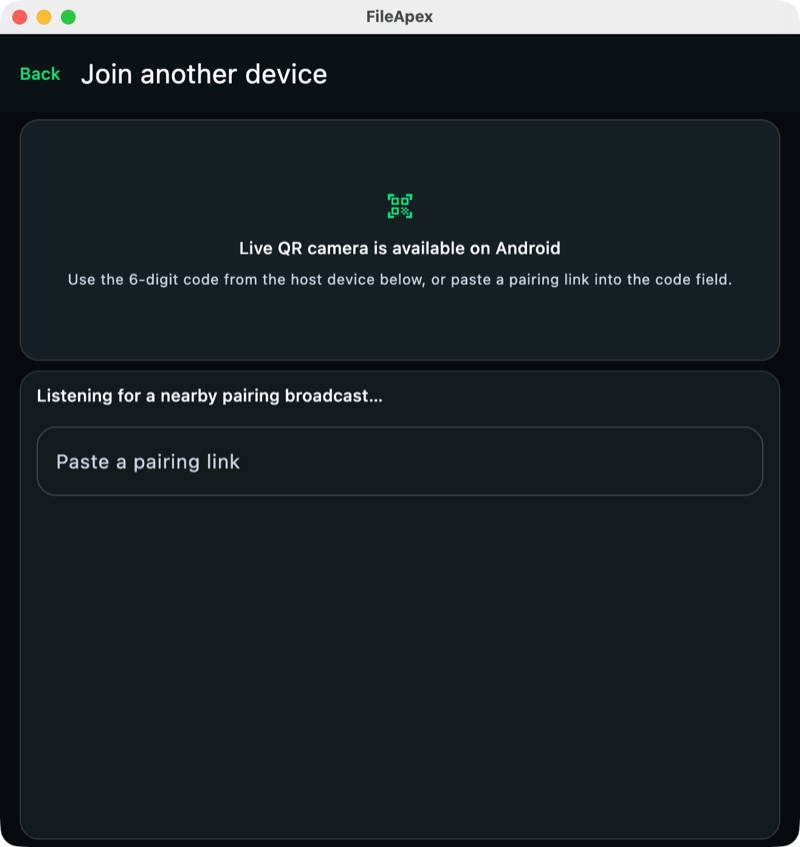
On a computer -
Check that the numbers match
If you did not scan the QR code, both screens show the same number. Confirm that they match.
The device that joins leaves any devices it already had and takes on the devices of the one it joins. You pair while you are at both devices, which keeps strangers on your Wi-Fi out. You can also set a PIN that protects pairing and browsing.
-
Send your first file
Open a device to browse its files, pick a file or folder, and send it to one device or several at once. You can also drag files onto the window on a computer, or use the Share menu on your phone or the Send To menu on Windows.
Received files land in
Download/FileApexon Android and~/Downloads/FileApexon a computer. An existing file is never overwritten.
Extras you can switch on
Clipboard sharing
Send your clipboard or a link to another device, in any direction. Off until you turn it on.
Bulletin Board
Send a note, link or file to all your devices at once, like a group chat with yourself.
Phone notifications on your computer
Choose which phone apps share notifications. You can reply or dismiss from the computer. Verification codes stay on the phone by default.
Find my phone
Make a paired phone ring from your computer.
Share as a link
Give one file to someone who does not have FileApex. They download it once in a browser.
Friends
Invite someone to send files to you and receive from you, without adding them to your own devices.
Away from home
On one network, devices find each other on their own. To reach them from another network you can turn on Tailscale or Iroh in Settings. Both are optional, encrypted, and need no IP address. Iroh connects by device key and can use a relay that only ever sees encrypted data. A Google account is a third option for presence and wake signals. None of them is needed on your own network.
If a device does not show up
- Both devices need to be on the same network for the first pairing. Guest Wi-Fi and some office networks stop devices from seeing each other.
- If your computer asks whether to allow FileApex on your local network or through the firewall, allow it.
- On Android, follow the app's battery guidance so the phone keeps FileApex reachable in the background.
- Still stuck? Ask on GitHub.